

4. Exploring the Teams Dashboard
Learn how to view your organization's teams, explore member groups, and navigate to detailed team views.
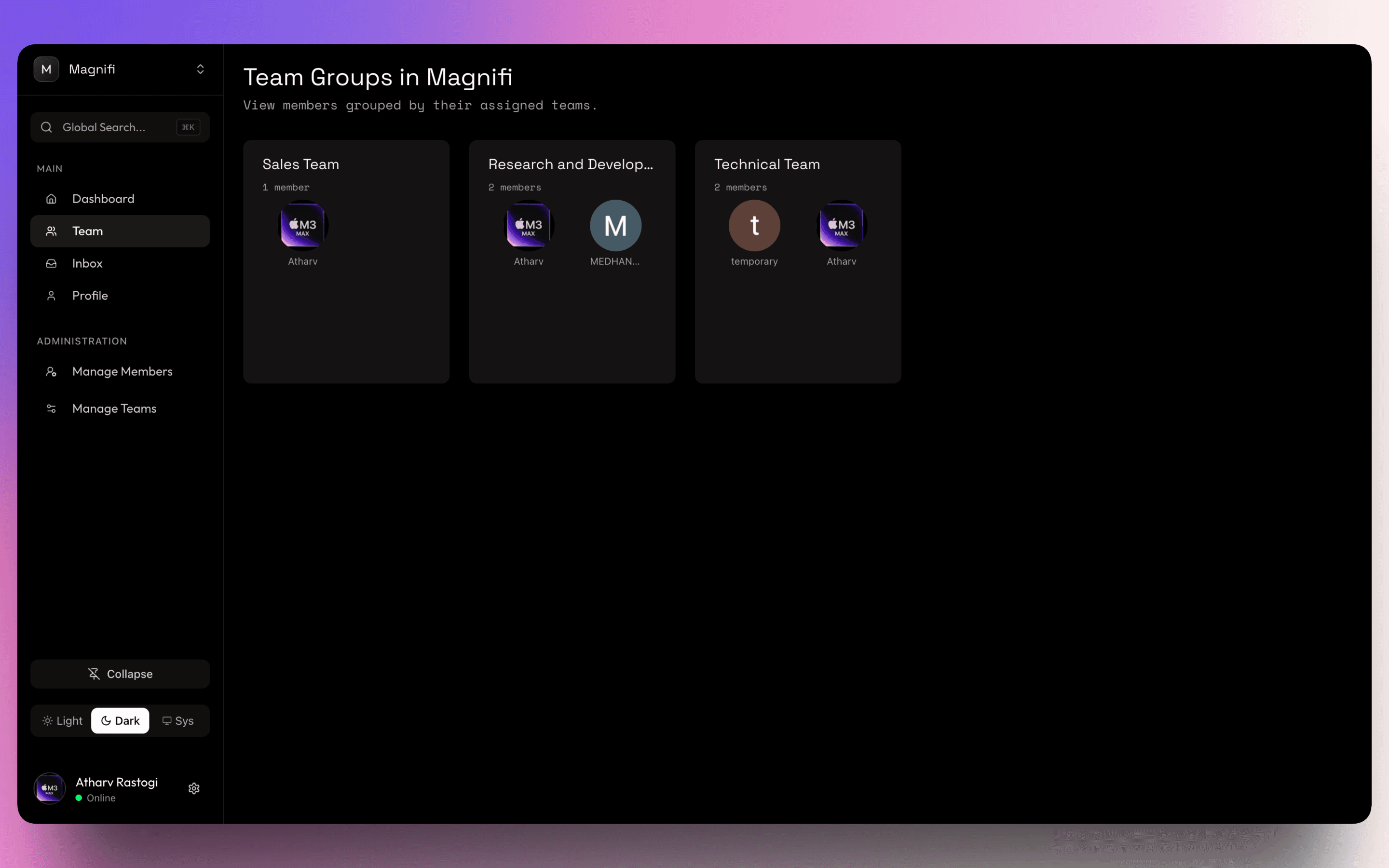
The Teams dashboard provides a bird's-eye view of all functional groups within your Organization. Once you have created teams and invited members, this is your central hub for exploring the team structure.
4.1. Accessing the Teams Dashboard
Open the Sidebar
Navigate to the Organization Dashboard sidebar.
4.2. Understanding Team Cards
The Teams page displays each of your organization's teams as a separate card.
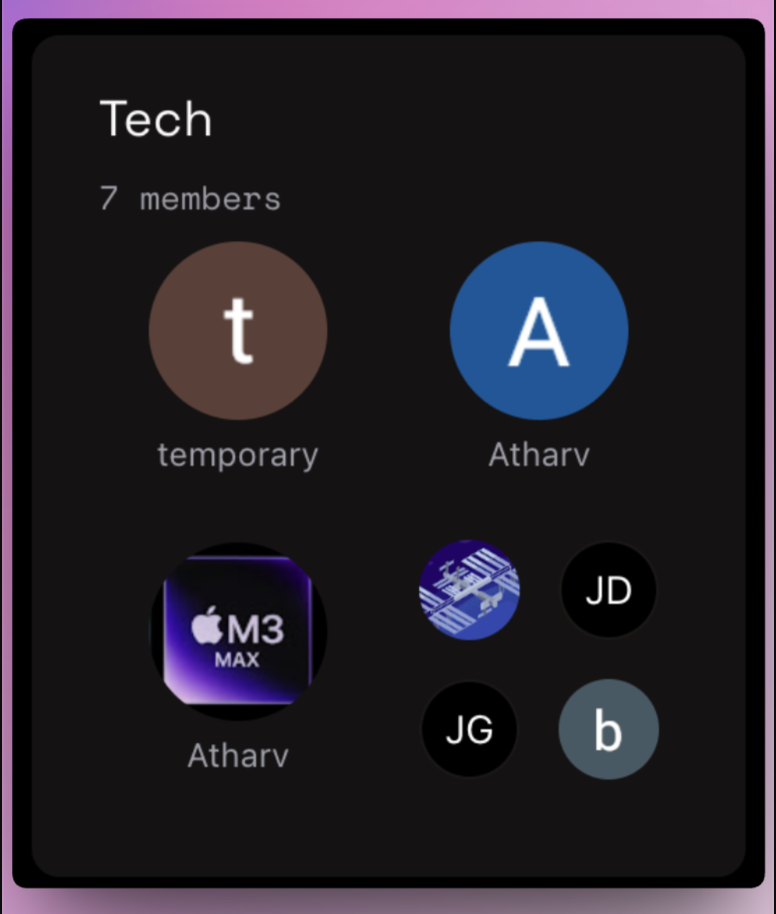
Each card provides a quick summary:
- Team Name: The functional group's name (e.g., Engineering, Marketing).
- Member Count: The total number of members assigned to the team.
- Member Previews: Avatars of the members in that team, providing a quick glance at who is involved.
The Unassigned Group
If there are members in your organization who haven't been added to a specific team yet, you will see an Unassigned card.
Clicking this card will take you to the member management page where you can assign them to the appropriate groups.
4.3. Navigating to Teams
To go inside specific Team, simply click on its card.
Select a Team
Click on any team card that has members assigned to it.
View Teams
You will be redirected to a dedicated view for that team, where you can see the Dashboard, Sub Teams, Projects and Manage settings.
Access & Visibility
Note on Visibility: Right now every member can see every Team in the organization, we are planning to restrict the team visibility in the future based on the team settings.
What's Next?
Now that you know how to navigate your teams, you can explore the dedicated views for each group or continue managing your organization.