

2. Creating Teams & Sub-teams
Learn how to create teams, organize sub-teams, and structure your Organization workspace in Magnifi.
Teams help you organize your Organization into different functional units such as Engineering, Marketing, Sales, Operations, and more.
Sub-teams can also be created under existing teams to build a clear hierarchy within your workspace.
Access Permissions
Only users with the Owner or Admin role can access and manage Teams.
2.1. Opening Team Management
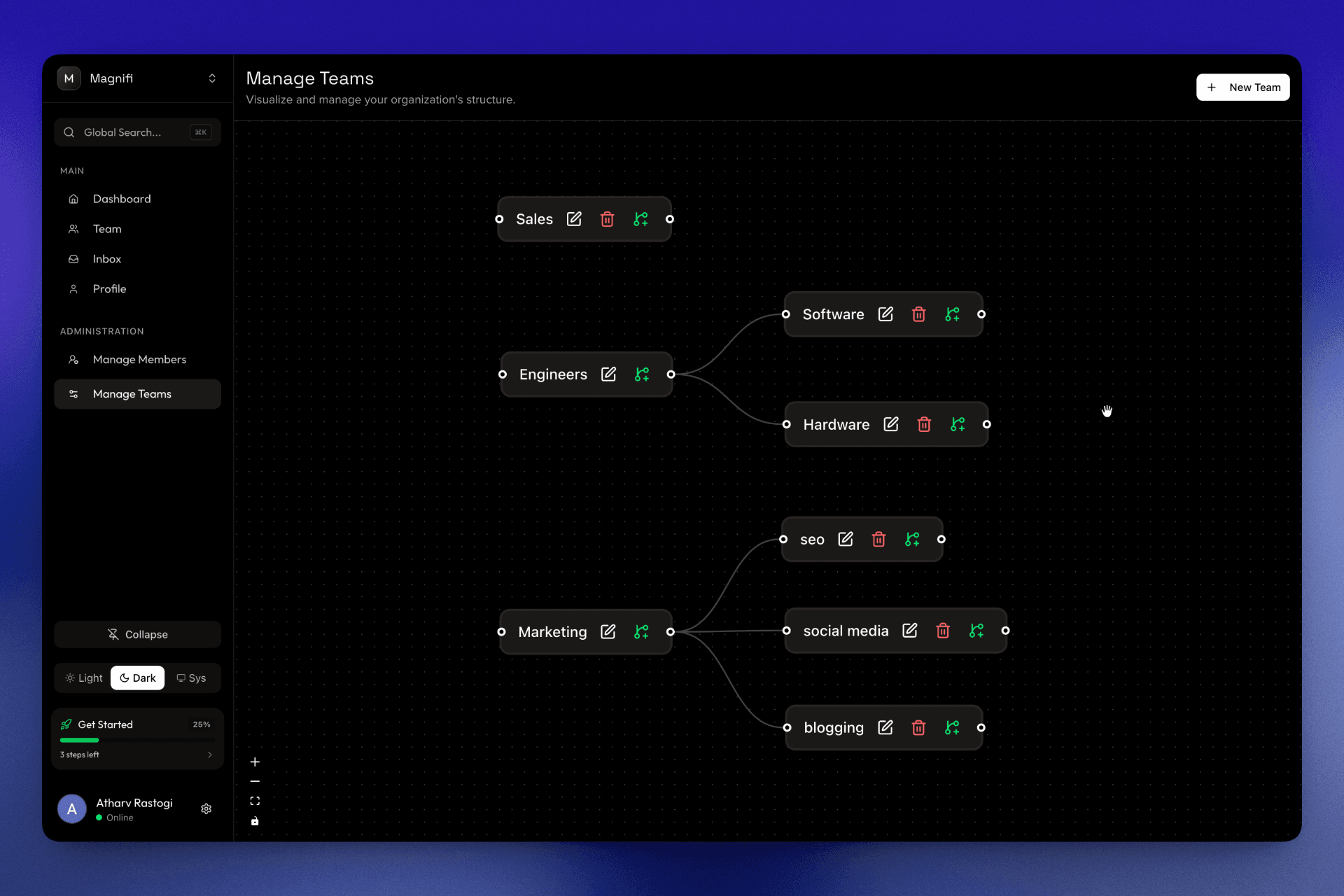
Navigate to the Organization Dashboard sidebar and click on Manage Teams under the Administration section.
This page allows you to visualize and manage your Organization’s team structure.
2.2. Creating a New Team
Follow these steps to create a new team:
Open Team Creation
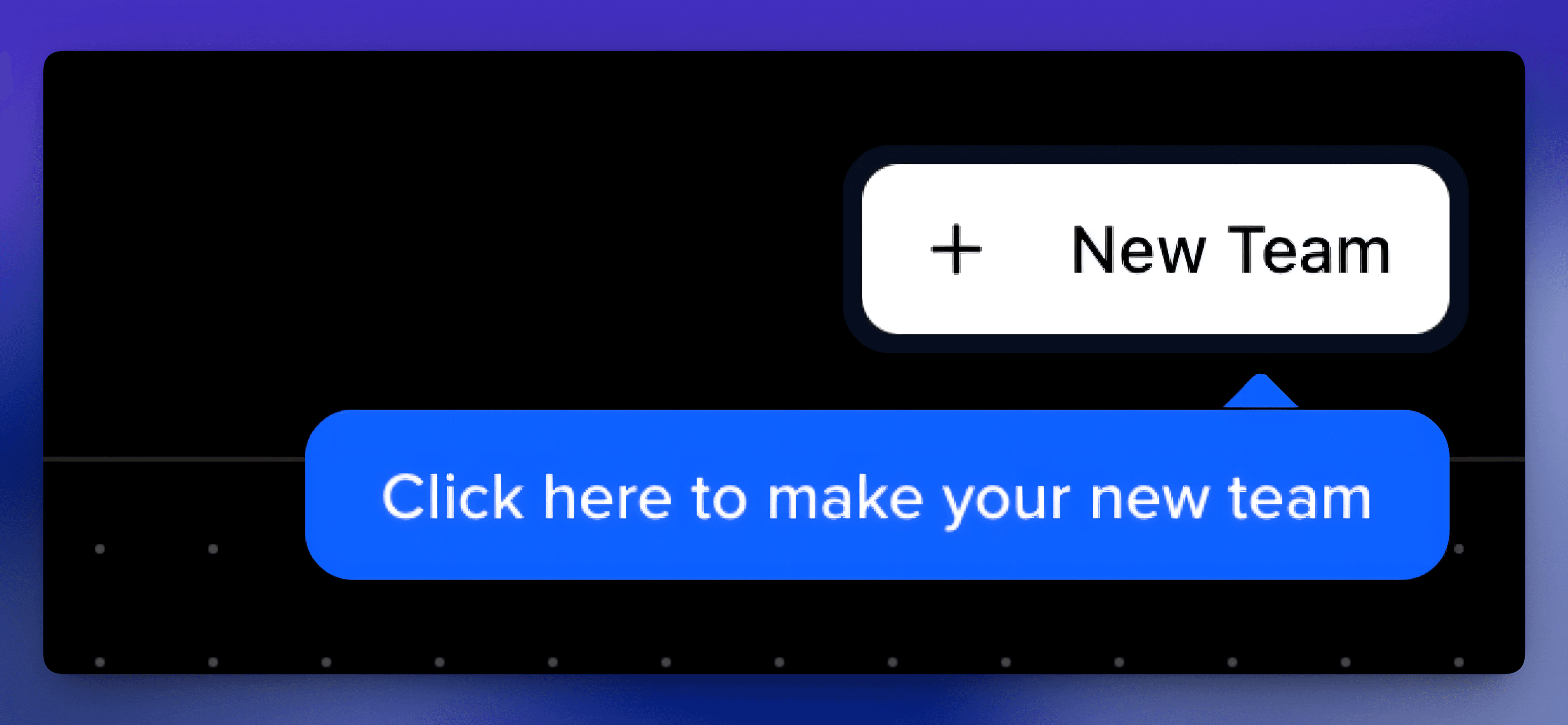
Click on the New Team button located in the top-right corner of the page.
Enter Team Name
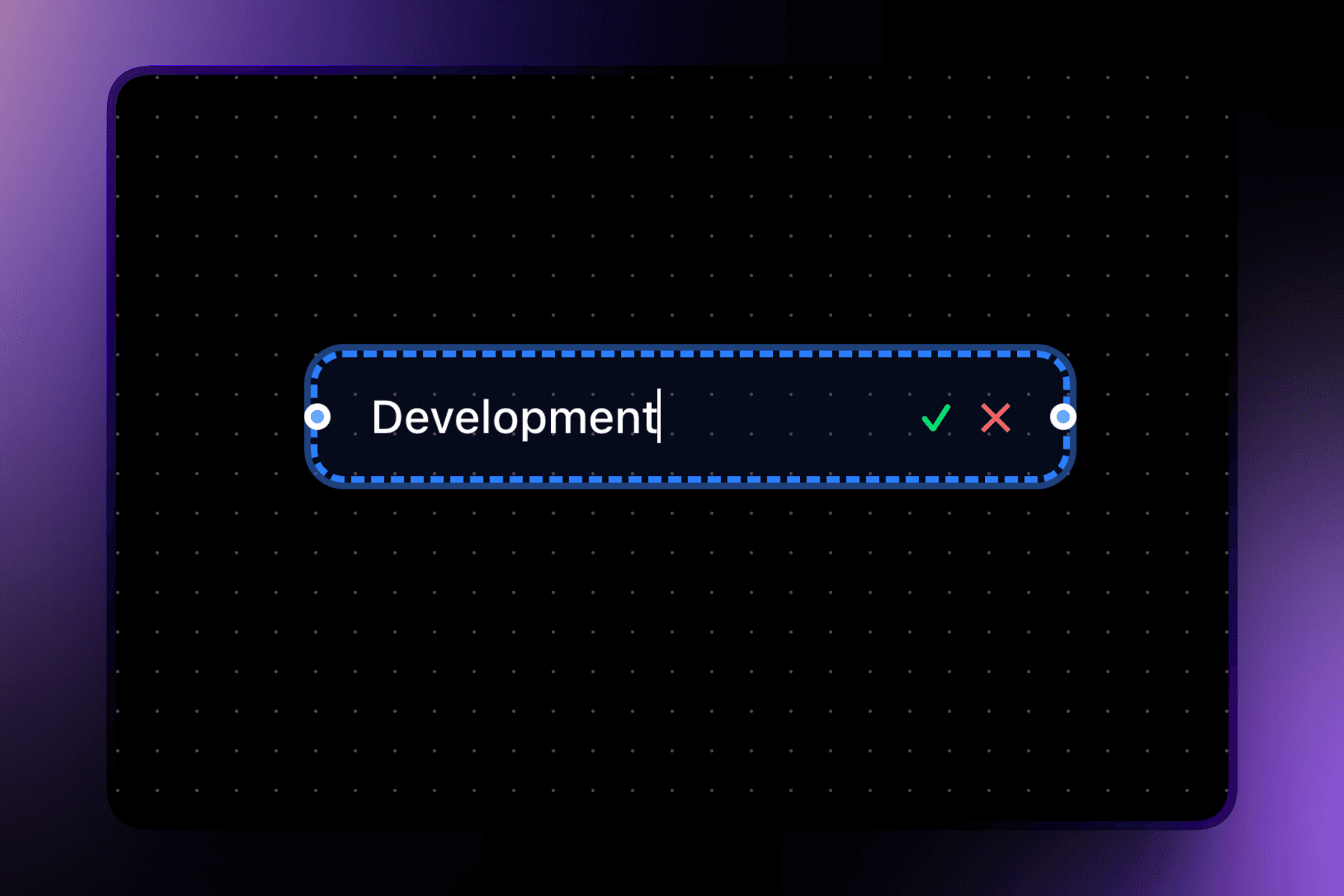
Type the name of your new team.
You can either:
- Press the
Enterkey or Click on the✓ (Tick)icon
to confirm creation.
Team Created Successfully
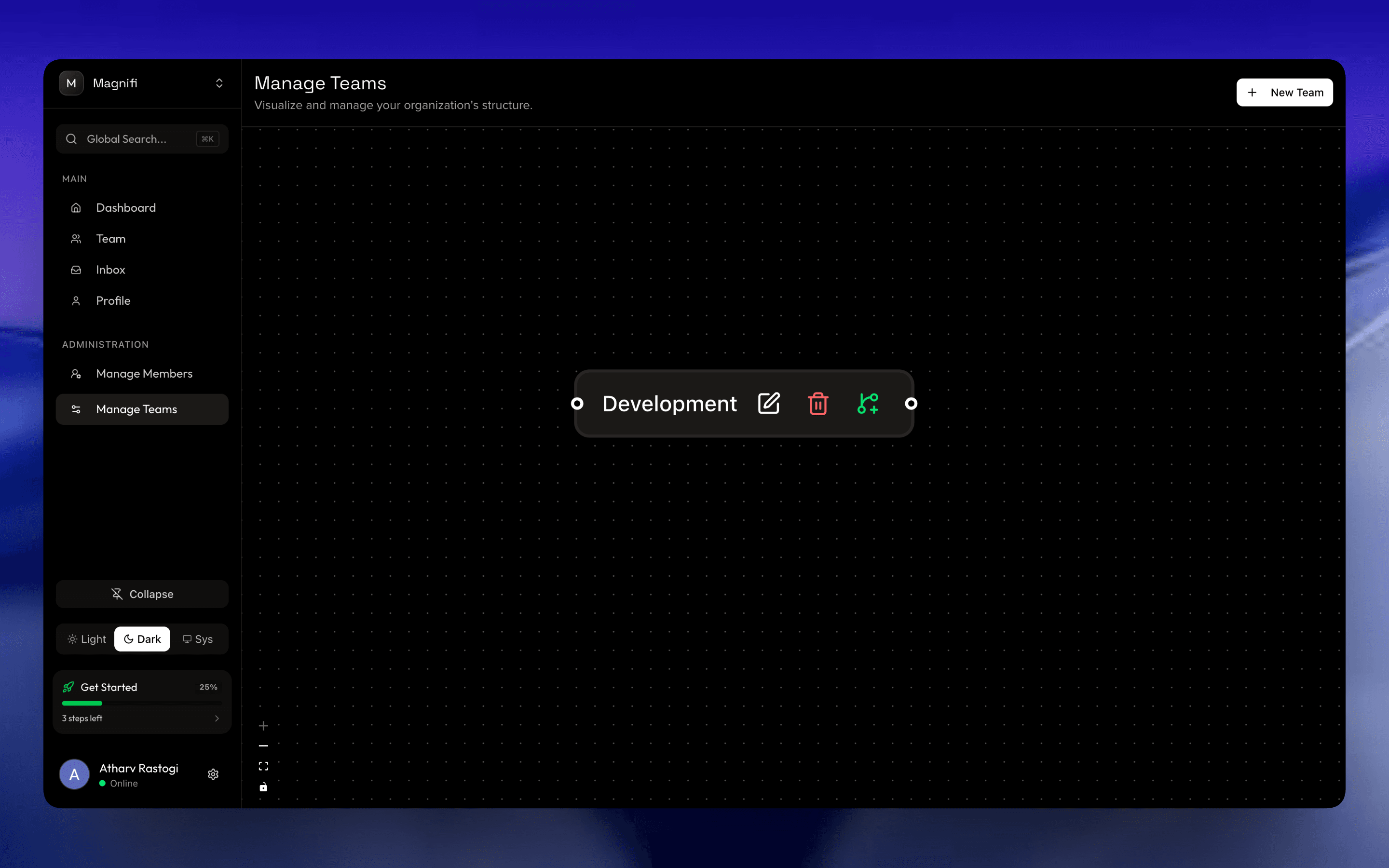
Once confirmed, the new team will immediately appear inside the workspace canvas.
A success notification will also appear confirming the team creation.
2.3. Creating Sub-teams (Optional)
Sub-teams allow you to divide larger teams into smaller specialized groups.
Example:
- Engineering
- Software Engineers
- Hardware Engineers
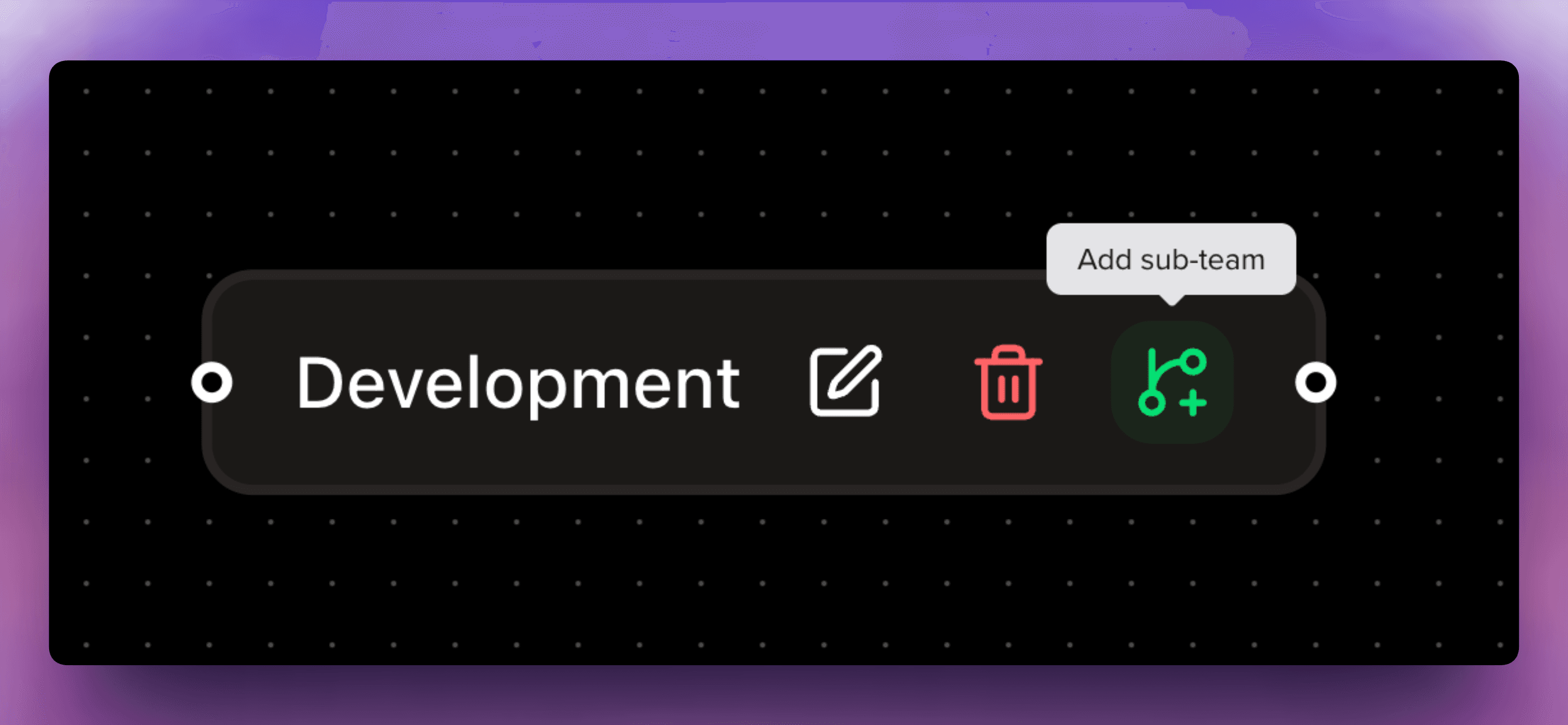
Click Add Sub-team
Click on the Add Sub-team icon on the selected team node.
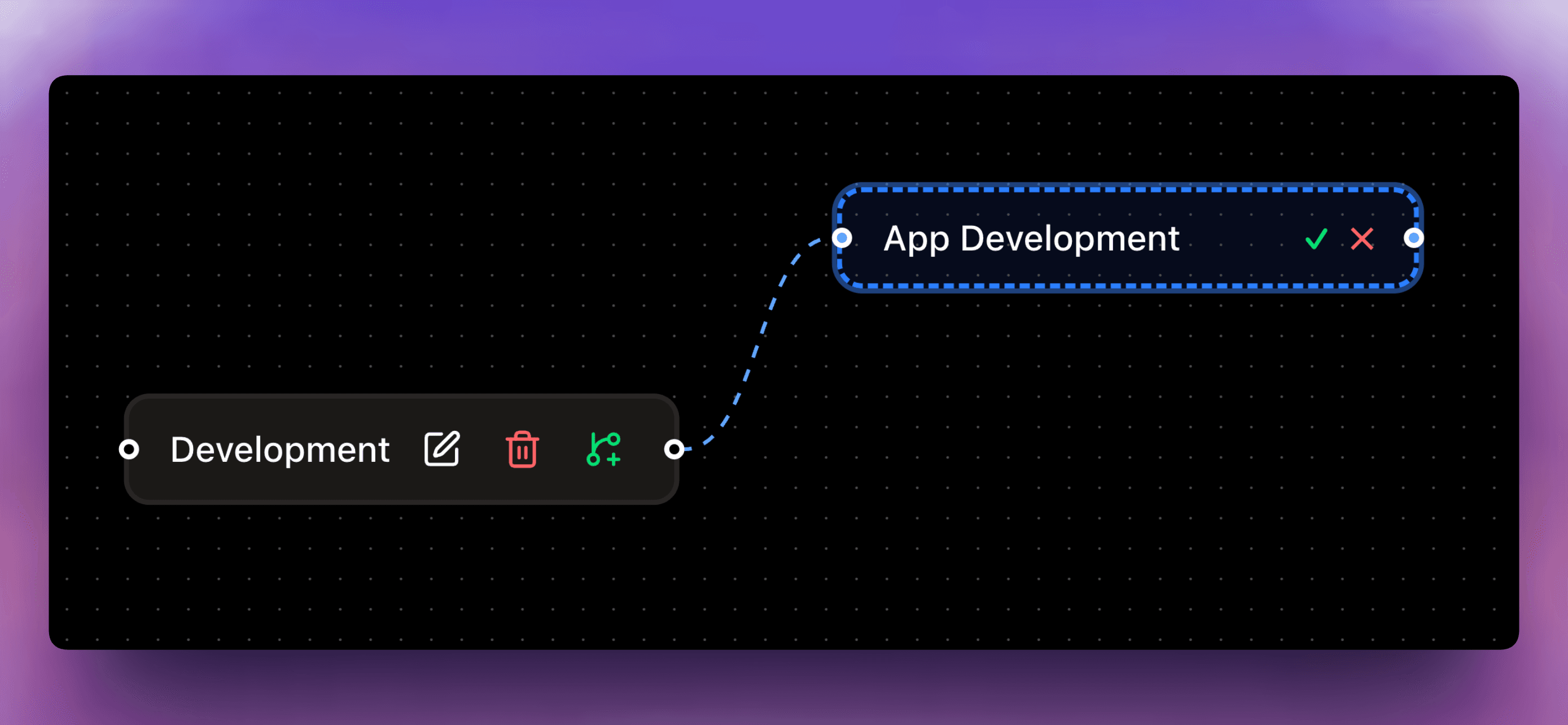
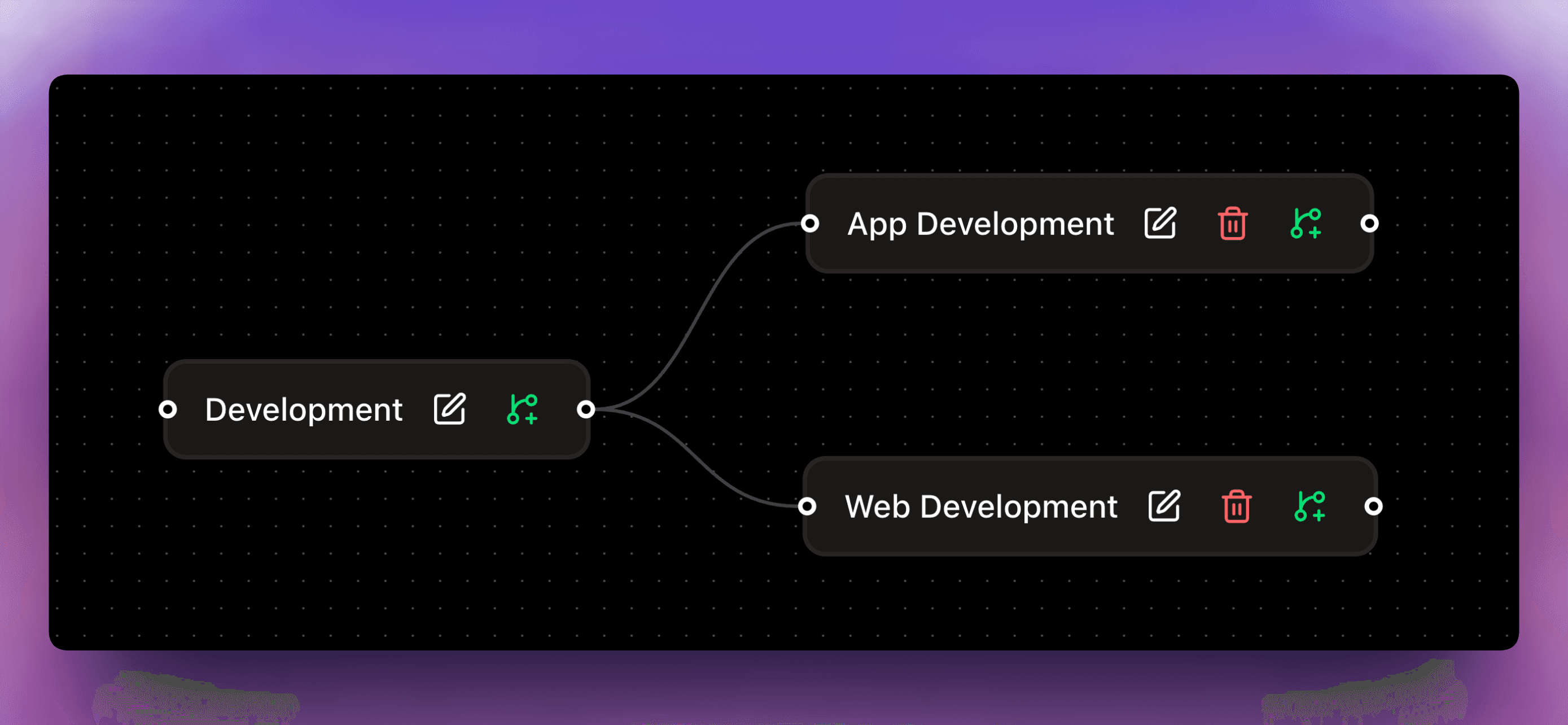
Sub-team Connected Automatically
The sub-team will automatically connect to its parent team in the hierarchy view.
Team Actions
Each team node includes quick management actions:
-
Edit Team — Rename the team
-
Delete Team — Remove the team
If a Team has Sub-teams, you must delete the Sub-teams first before the parent Team can be deleted.
-
Add Sub-team — Create a nested team under the selected team
To learn more about them refer to Inside the Team Workspace.
What's Next?
After setting up your teams and sub-teams, you can:
- Invite and manage team members
- Explore the Team Workspace guide