

7. Task Details
A comprehensive guide to managing task properties, collaborating via comments, creating documents, assigning sub-tasks, and adding attachments.
Once a task is created, you can open its details page to manage its properties, collaborate with team members, write documents, track subtasks, and upload attachments.
7.1. Main Task View
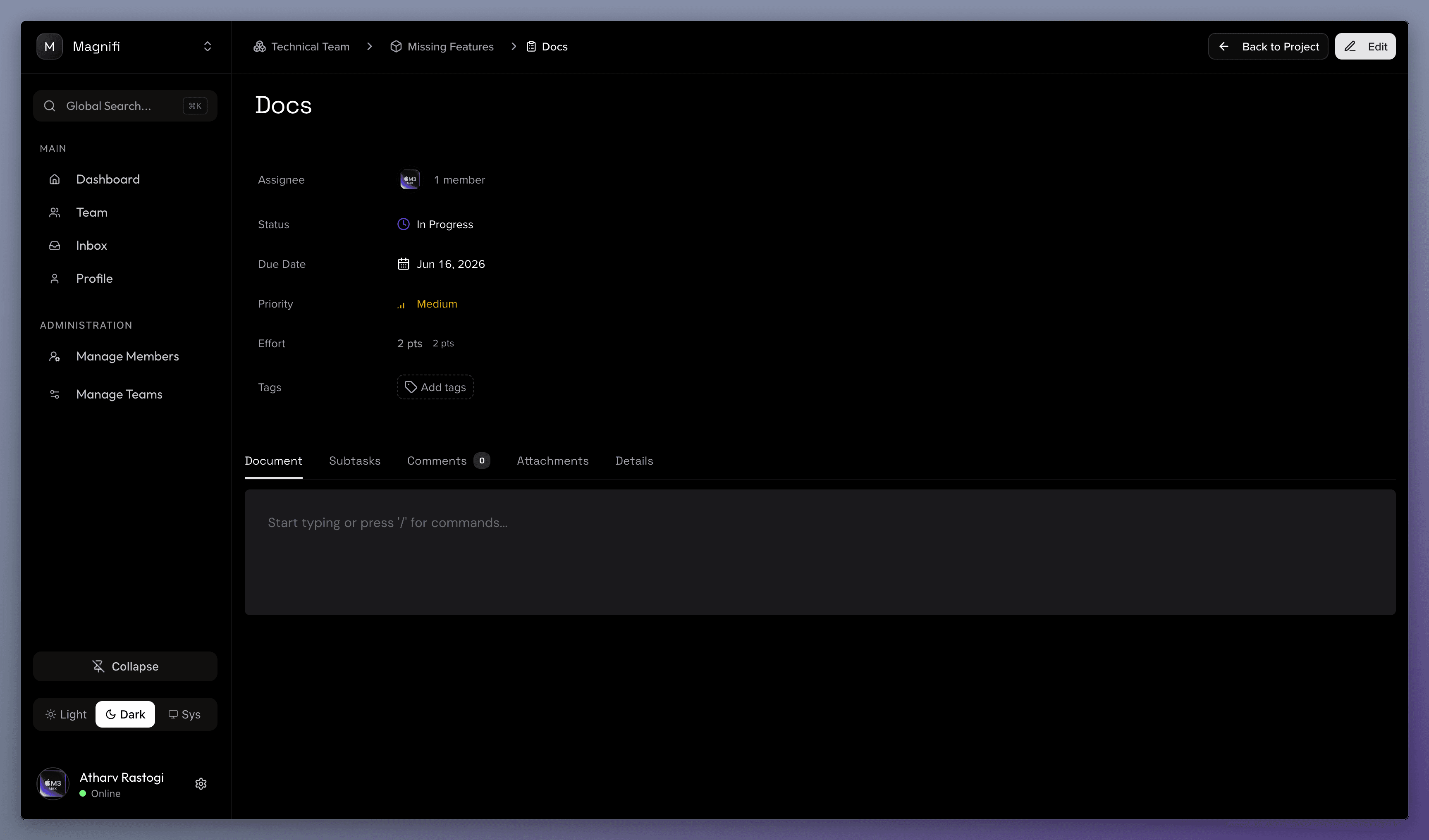
The main task screen includes breadcrumbs to navigate back to the project, buttons to edit or save changes, and a panel of task properties:
- Assignee: View and assign team members responsible for the task. Clicking the assignee section opens a search selector to add or remove people.
- Status: Track task progress (To Do, In Progress, In Review, Blocked, Completed) with color-coded status indicators.
- Due Date: Set a clear deadline using the built-in calendar picker.
- Priority: Prioritize work with low (green), medium (yellow), or high (red) priority indicators.
- Effort: If Story Points are enabled, set Fibonacci difficulty points (1, 2, 3, 5, 8) to estimate complexity.
- Tags: Categorize your task. You can select existing project tags or create new tags on the fly.
7.2. Task Workspace Tabs
Below the task properties, a tabbed interface organizes different collaborative workspaces:
1. Document Tab
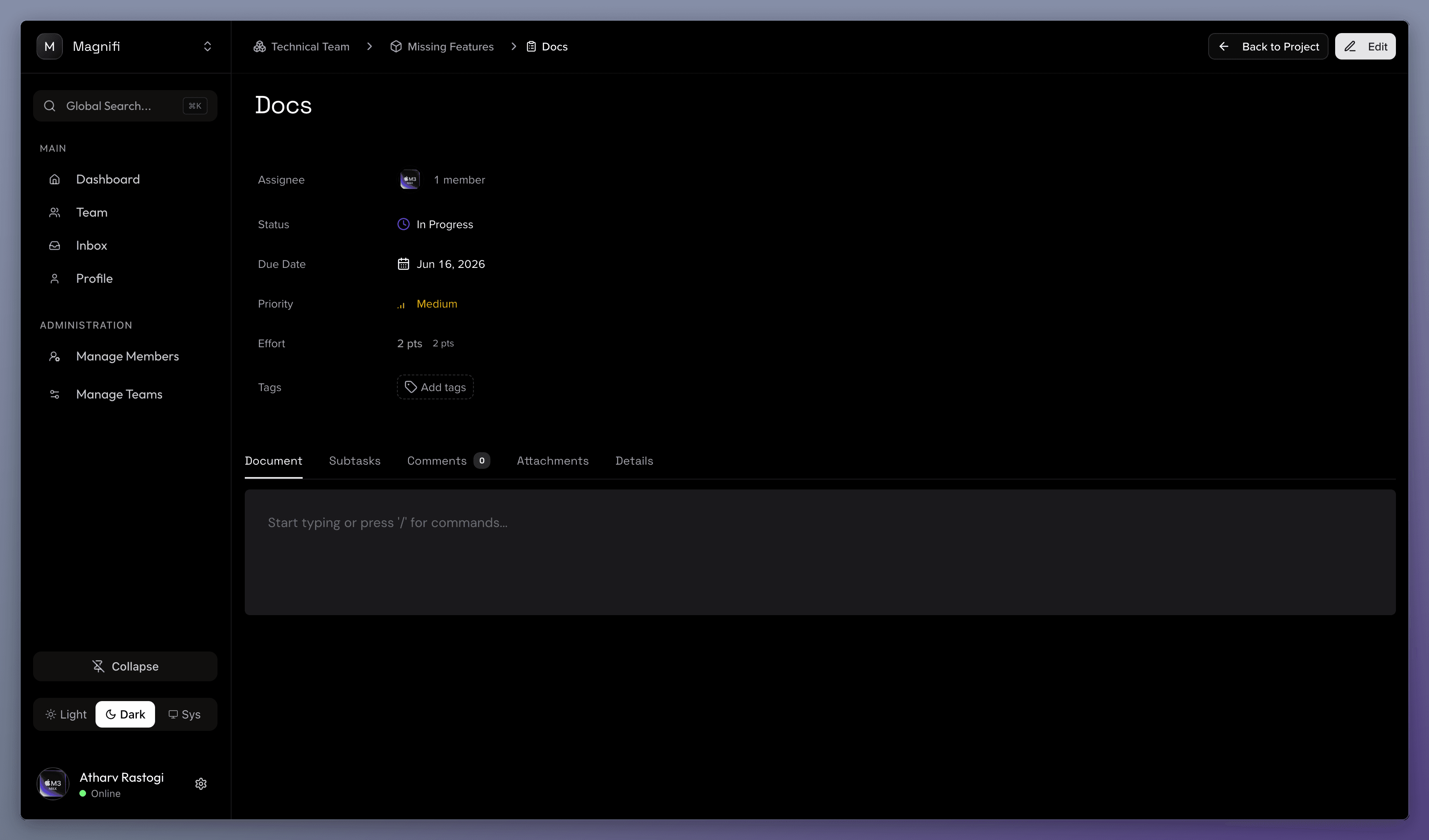
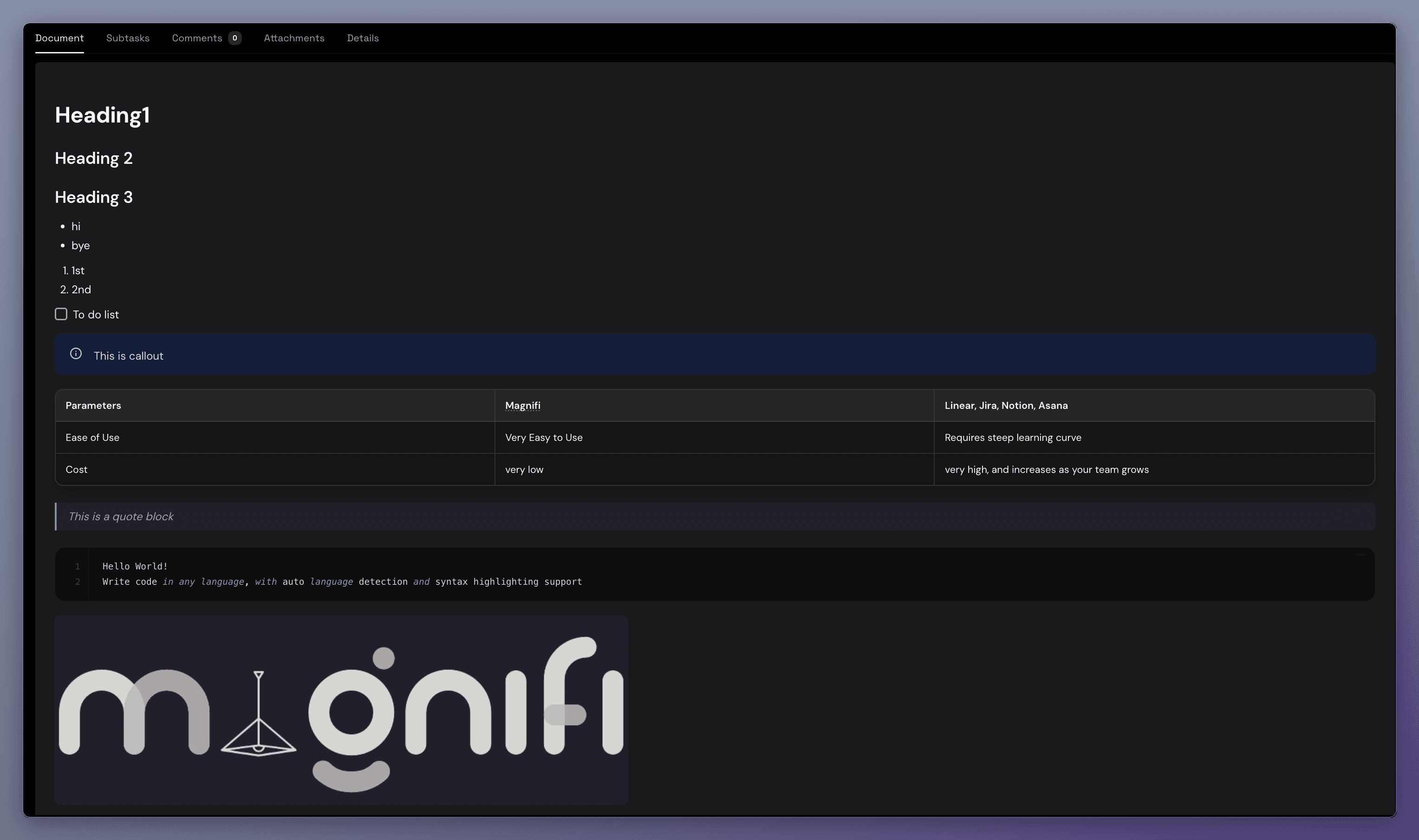
Each task includes a built-in, Notion-style collaborative document:
- Slash Commands: Type
/anywhere in the editor to open a list of styling and formatting tools (headings, checklists, bulleted lists, code blocks, and dividers).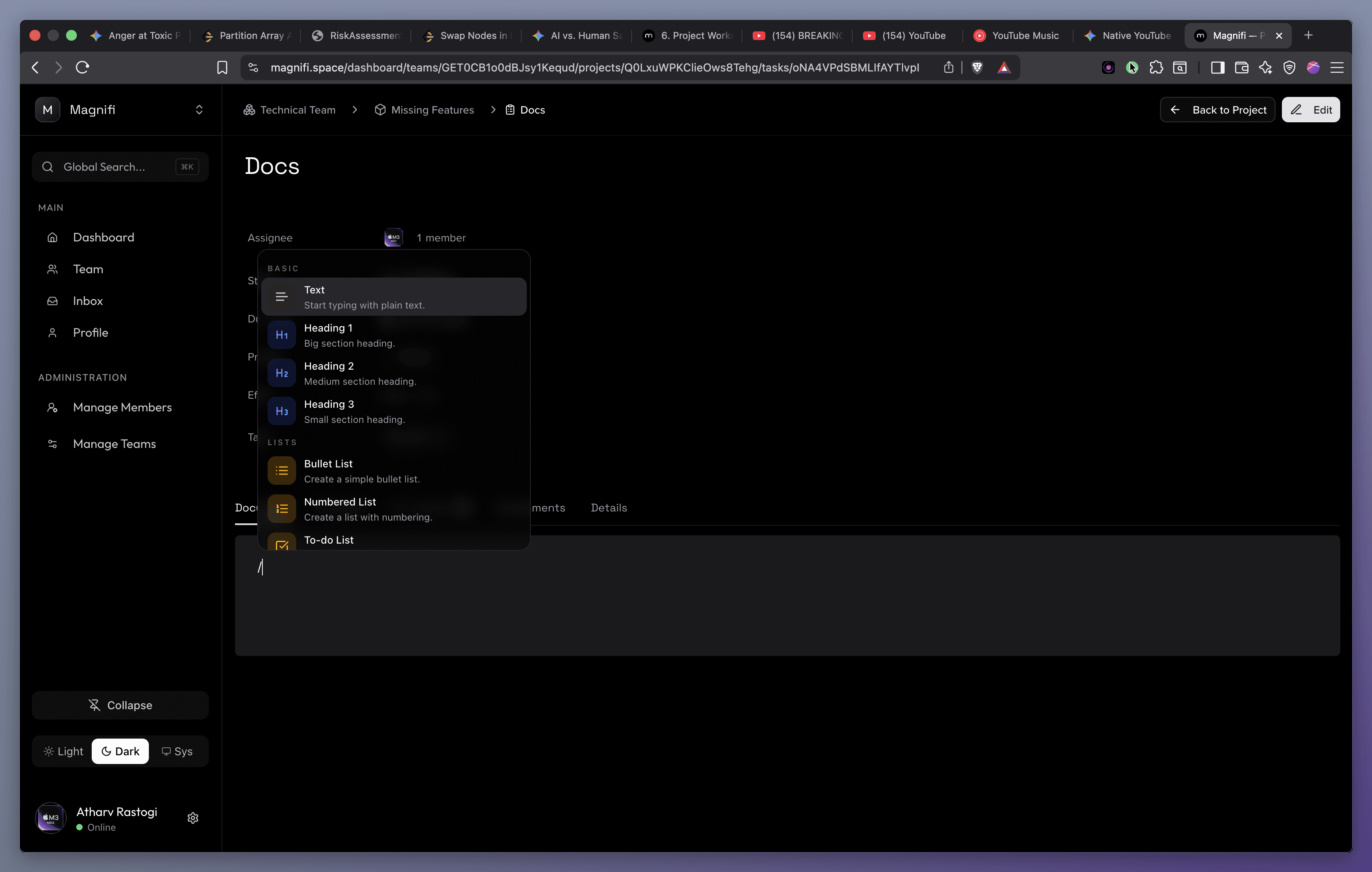
- Writing & Collaboration: Create detailed documentation, guides, or specifications related directly to the task.
2. Subtasks Tab
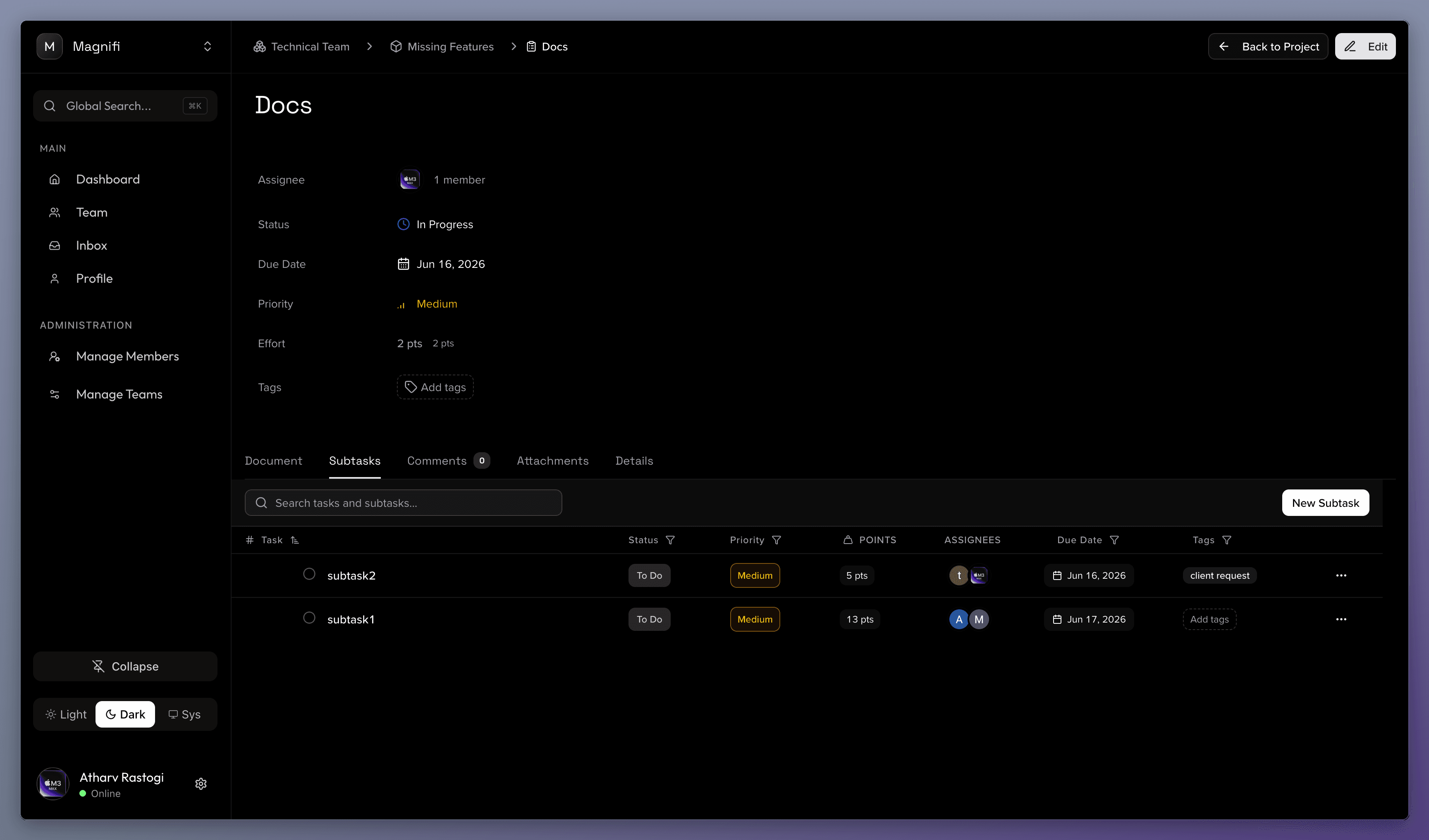
Manage nested lists of work within the task:
- Task Hierarchy: Break down large tasks into smaller, manageable subtasks.
- Table Controls: Search, sort, and filter subtasks by status, priority, due date, or tags just like in the main project view.
- Add Subtask: Create new subtasks directly from this tab.
3. Comments Tab
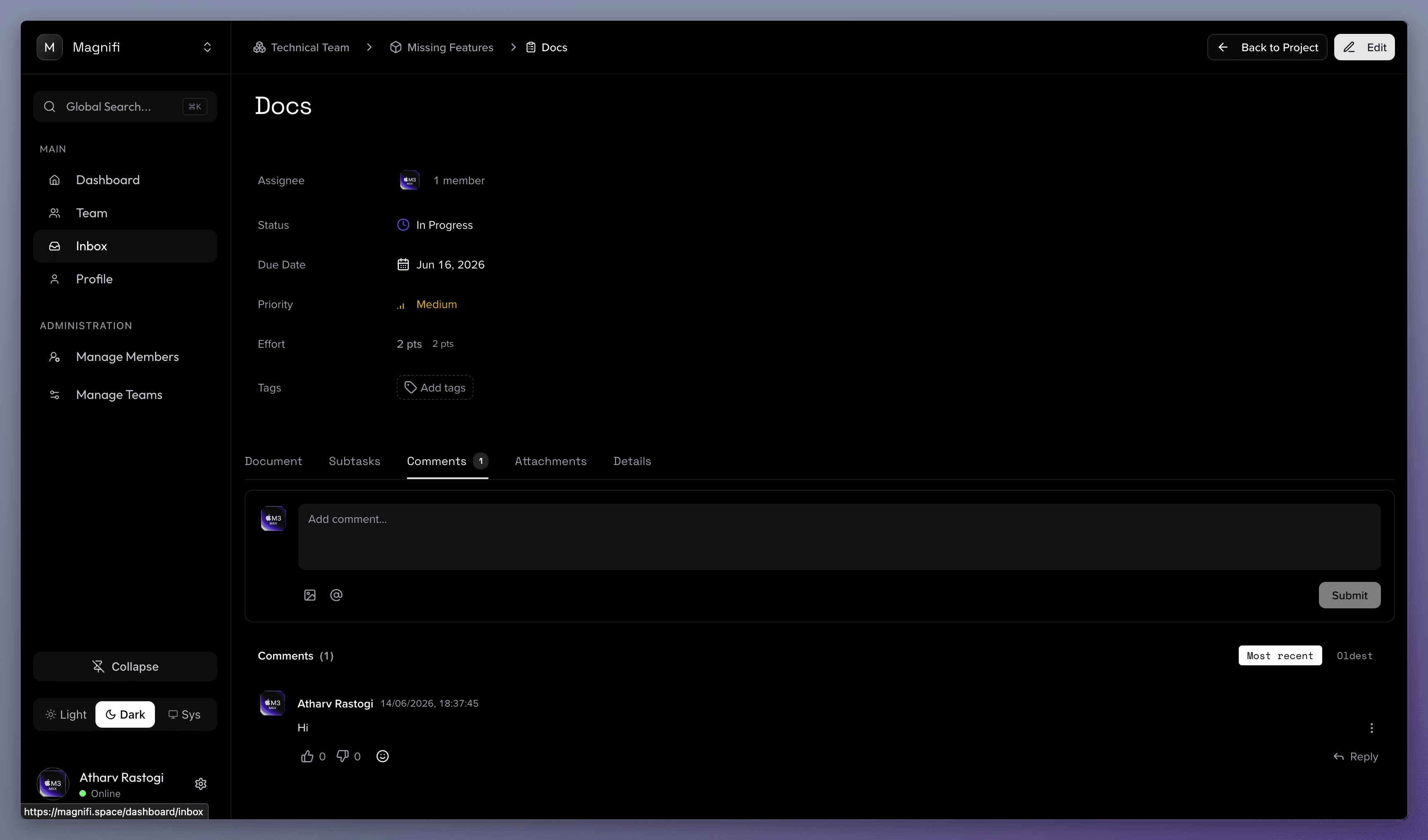
Discuss progress and collaborate with your team:
- Real-time Discussion: Write and reply to comments within a focused conversation thread.
- Team Mentions: Type
@followed by a team member's name to mention them in a comment. Mentioned users will receive a prominent alert notification.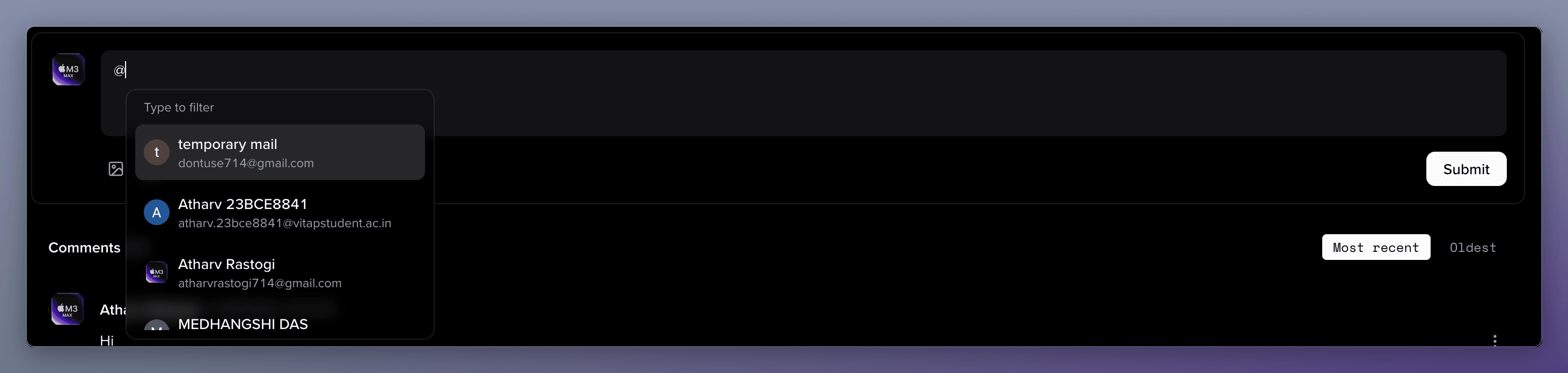
4. Attachments Tab
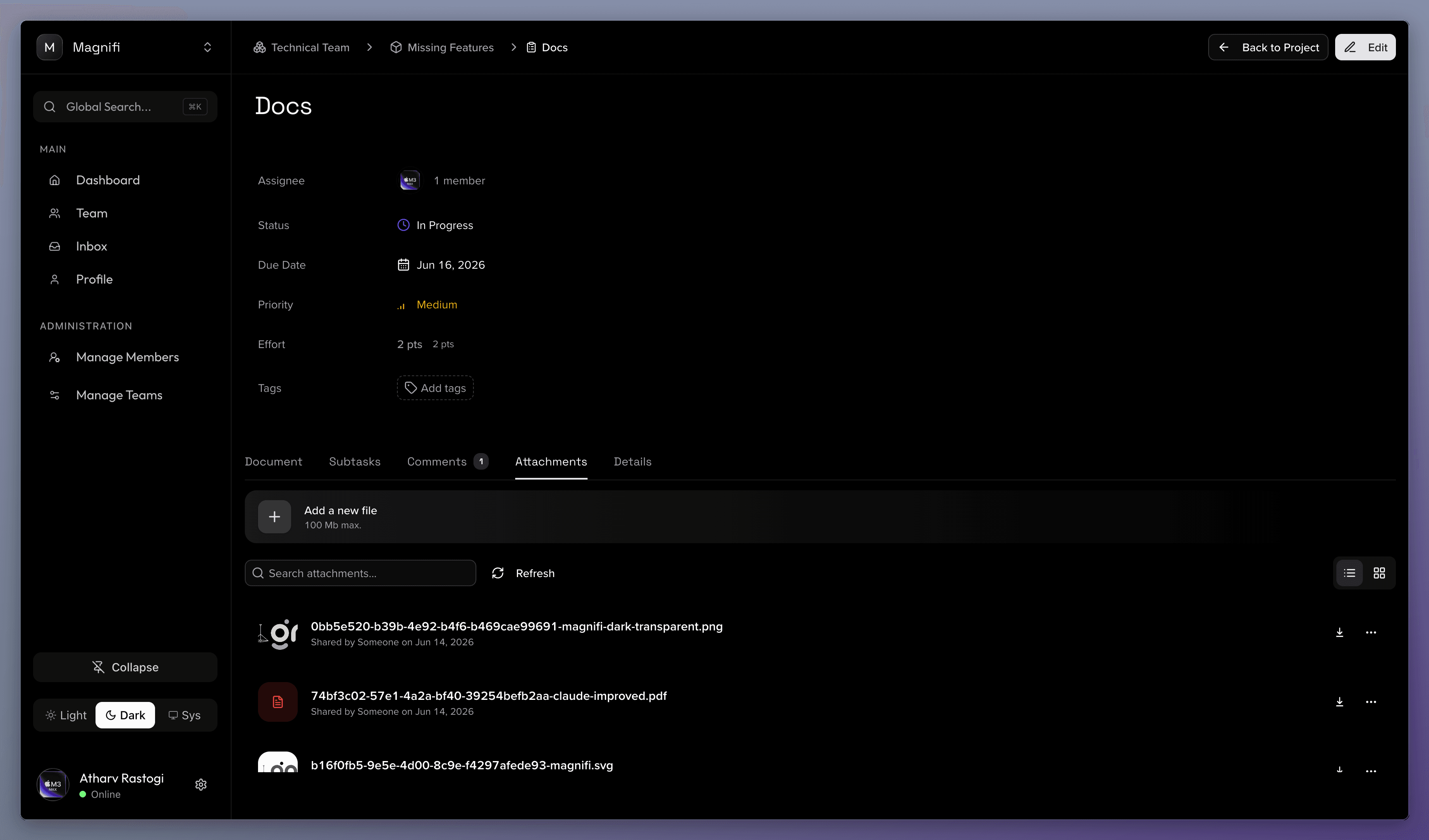
Attach and organize project assets:
- File Uploads: Drag-and-drop files directly onto the dropzone or click to browse files (supports files up to 100 MB).
- Upload Status: View live upload progress bars and manage uploaded files.
5. Details Tab
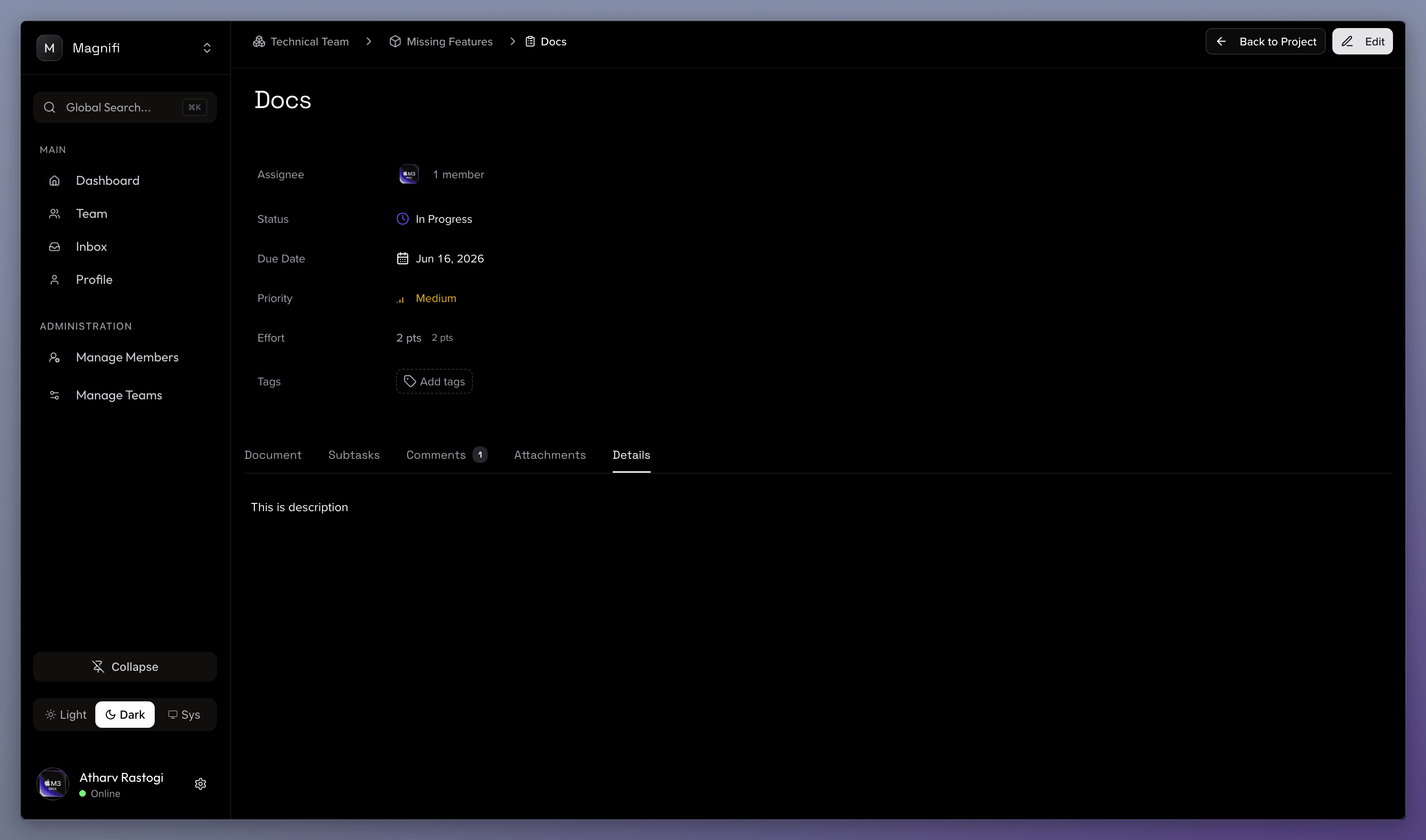
Manage the main task description:
- Text Description: Add context, specifications, or background information.
- Inline Editing: Click anywhere on the description block to edit, and the system automatically saves your changes.